
At ATIEMPPO, we are developing tools that help people, companies and their AI agents query and use logistics information in their daily work. ATICA and SICETAC al Instante are a step in that direction. Here is how to get started.
Article prepared on 19 October 2026. Launch conditions and connection status reflect that date. The portal, screenshots and some linked documentation are in Spanish.
At ATIEMPPO, we have been expanding the ways people can use the data we generate, organize and analyze. We want that information to support concrete operational decisions: examining a route, comparing scenarios, understanding the components of a cost or reviewing values across a transport network. SICETAC al Instante is one of the projects we have developed for that purpose and now want to make available to more people.
This work reflects a conviction behind our development: AI agents will become more useful as we give them authorized access to specialized tools and information sources. We have in mind both the assistants we already use and those that people and companies are building for their own needs. We want to help these agents perform more complete tasks, query verifiable information and use a calculation engine when the question requires it.
We are therefore building services that can be used from our portal and integrated with systems and AI agents. The aim is for the same capability to support different working environments while retaining source identification, query parameters and account permissions. Along the way, we have developed ATICA and SICETAC al Instante, two services that share ATIEMPPO sign-in and address different operational needs.
What we are building with ATICA and SICETAC al Instante
ATICA provides a space to organize and analyze your transport network, save routes and enter your own values. A free account lets you start with a personal network of up to 10 active routes; work with company information and expanded capacity has its own permissions and conditions. This is intended to make it easier to move from general information to the specifics of your operation.
SICETAC al Instante provides queries of published SICETAC references and scenario calculations using our cost engine. You can explore catalog routes, review vehicle configurations and body types, adjust logistics hours or request a breakdown for an existing route. We also offer a manual mode for routes outside the catalog, provided you supply the distances by terrain type and the tolls needed for the calculation.
Each service has defined access permissions. When you authorize an agent to use SICETAC al Instante, you allow it to query catalogs, references, calculations, documentation and your personal usage. Private company information in ATICA retains its own administration and permissions.
How the portal, API and MCP relate to one another
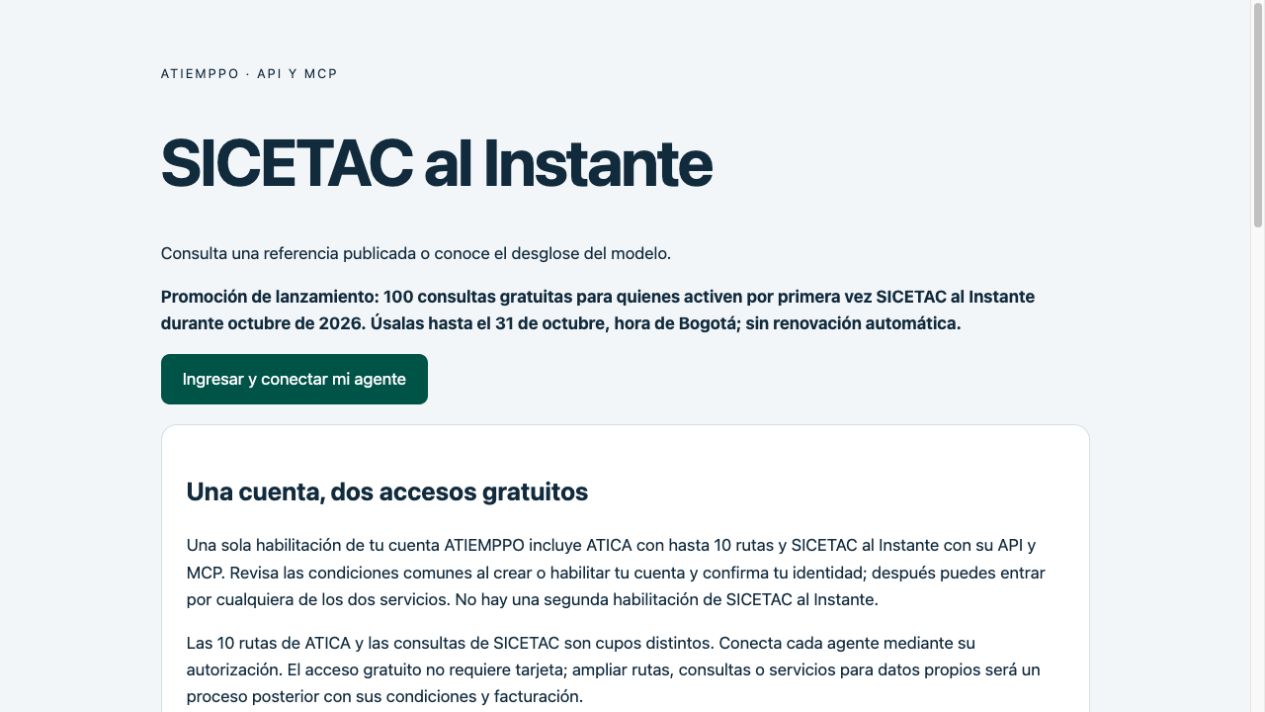
Our ATIEMPPO portal brings together account sign-in and access management. There you can enter your ATICA network, review your SICETAC al Instante balance, manage API keys and inspect or revoke connections you have authorized. We have unified free activation so you can start with either service using the same account.
For people who want to incorporate these capabilities into their own software, we offer an API, which lets a program or system communicate with the service. For AI agents, we provide an MCP connection through which they can discover and use the available tools. SICETAC al Instante queries made through the API and agents draw on the same personal allowance.
What it means to connect your agent through MCP
MCP stands for Model Context Protocol. It is a standard for connecting an AI agent to external tools and information sources. Through that connection, our service tells the agent which functions it can use, which inputs each requires and which results it can obtain.
In practice, you can ask your agent to query a route, review a published reference or request a cost breakdown from the engine. An instruction such as “Look up Bogotá–Barranquilla and show me the breakdown with six logistics hours” can lead it to identify the route, ask you to choose a variant where necessary and use the authorized tools to answer.
We have designed the process so each response identifies its source, the queried period, the parameters used and its limitations. We distinguish published SICETAC references from our model’s results, even when both refer to a catalog route. Values are expressed per trip in Colombian pesos and have a technical scope; arranging transport and vehicle availability requires the corresponding operational work.
These tools can support several kinds of question:
| What you need to resolve | What you can query with our service |
|---|---|
| Identify a route | Origin and destination municipalities, catalog routes and their variants. |
| Define the vehicle | Available vehicle configurations, body types and load conditions. |
| Review a reference | A published SICETAC reference for a period, with the logistics hours used. |
| Understand the cost structure | The model breakdown for an existing route, including fuel, tolls and the other components returned by the engine. |
| Study a route outside the catalog | A manual scenario using the distances by terrain type and tolls you supply. |
| Track usage | Your account balance and activity, with attribution by agent or key where available. |
The following steps cover registration, connecting an agent and your first query. You can start from our SICETAC al Instante portal.
Step 1. Sign in to your ATIEMPPO account
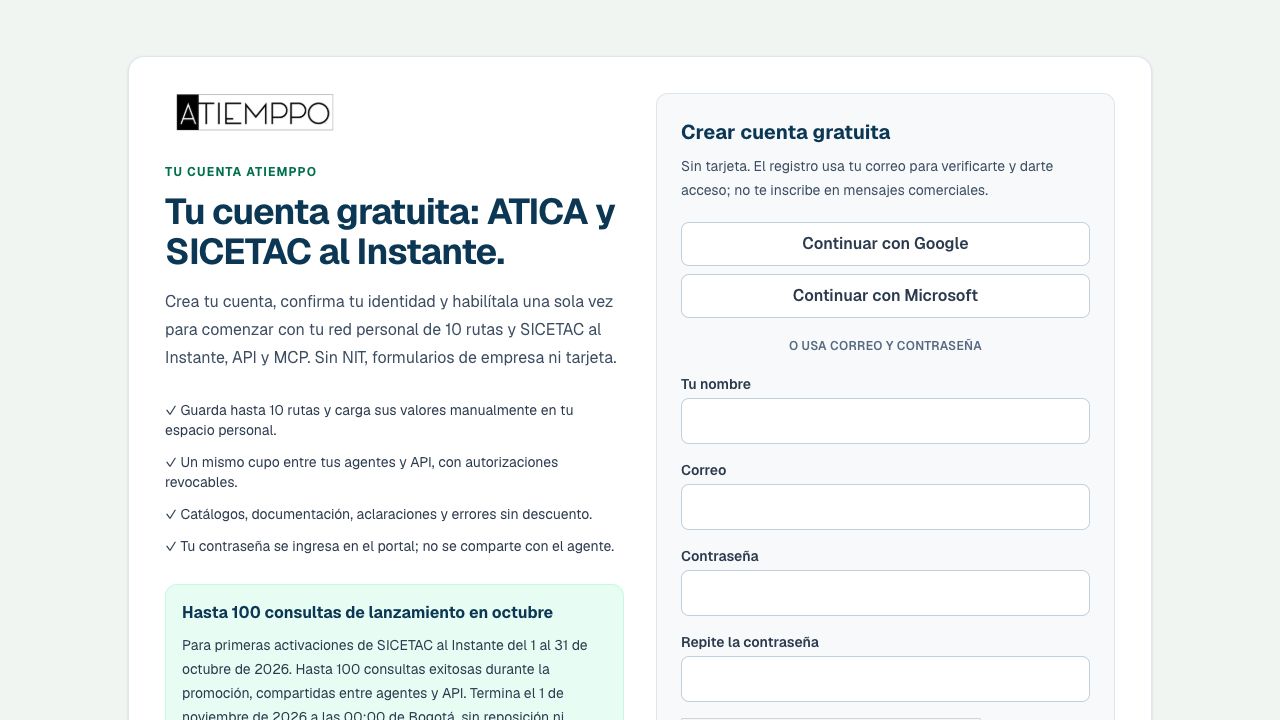
We provide a common entry point for the free services without requiring a company form or a payment card. If you already have an ATIEMPPO account, you can keep using it. If you are starting, the same portal lets you create one and confirm your identity.
- Open clientes.atiemppo.com/sicetac-al-instante and sign in or choose to create your free account.
- Complete identity verification. If you use an email address and password, confirm your registration email.
- Review the service and personal-data terms. If “Habilitar mi cuenta gratuita” (“Activate my free account”) appears, complete that acceptance once.
- Enter SICETAC al Instante and check your available balance before connecting an agent.
That activation includes access to ATICA with a personal network of up to 10 active routes and to SICETAC al Instante, API and MCP, with the applicable query allowance. Saved network routes and cost queries are managed as separate capabilities. Each agent is authorized afterward, using your own account.
Our October launch conditions
For people activating SICETAC al Instante for the first time during October 2026, we offer up to 100 successful queries in total, usable through 31 October 2026, Bogotá time. The promotion ends on 1 November at 00:00 in Bogotá, with no replenishment or automatic charges.
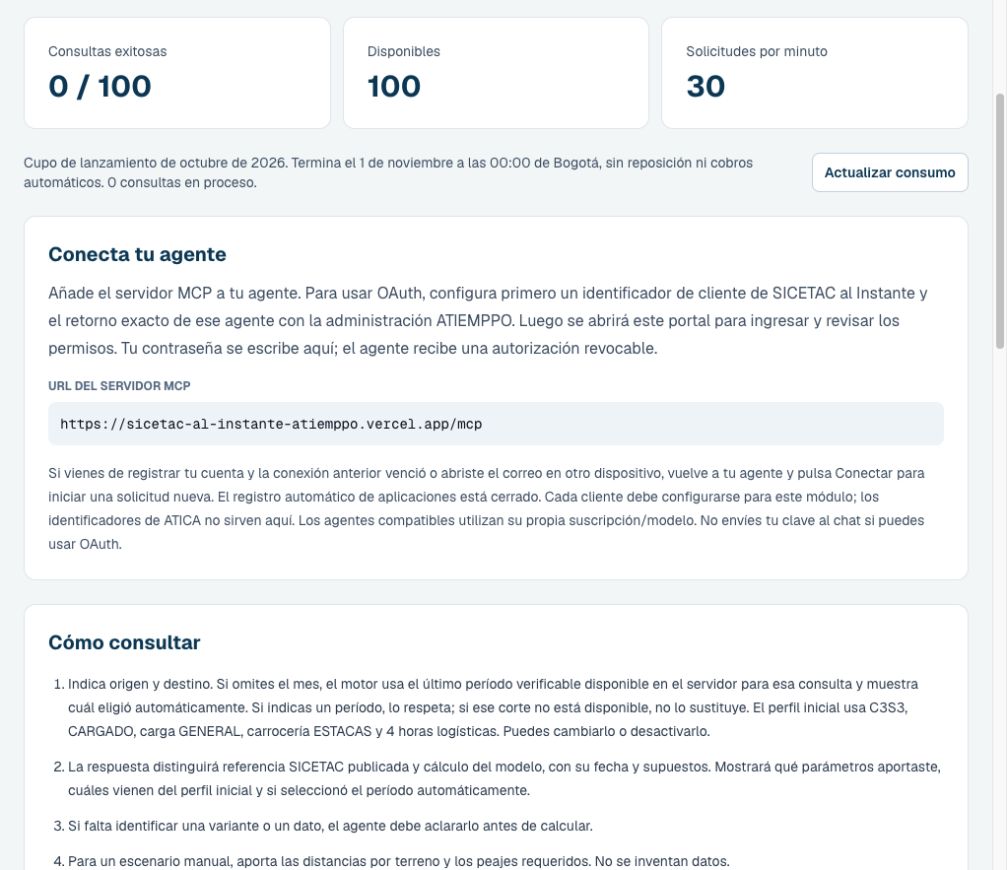
All agents and API integrations for a user share that allowance. One query is deducted when you obtain a successful reference or calculation, and another if you request a repeat or a new calculation. Catalog, documentation and balance queries, clarifications and errors leave the balance unchanged. The portal shows your available units and their validity period.
Access through ATIEMPPO is subject to the terms of the AI platform you choose. That provider’s subscription or usage charges are managed separately.
Step 2. Choose the agent you want to connect
Our MCP server address is the same for SICETAC al Instante integrations:
https://sicetac-al-instante-atiemppo.vercel.app/mcp
The table below sets out the connection options and the status of the tests we have performed. Configuration depends on the product, organization permissions and the provider’s conditions.
| Service | Connection and status of our tests |
|---|---|
| Claude web | We ran real queries using a custom remote connector with OAuth. Configuration steps appear below. |
| Claude Code | We tested an MCP connection with its own OAuth setup, requiring technical configuration and the corresponding registered client. |
| Grok Bot | We tested remote MCP with OAuth in one installation of the application. Each person must connect and authorize their account. |
| OpenClaw / our Bruno | Bruno is our assistant built on OpenClaw. Using SICETAC al Instante in this environment requires configuring access to its MCP tools or API, with the integration’s credentials and permissions. |
| OpenAI / Codex | We completed OAuth and checked the tools in a test connection. As of 19 October, plugin 0.4.5 remained under review, with publication in the directory pending. |
| Your own application or agent | We offer an HTTP API and MCP with a personal key, or with an OAuth client registered for the integration. Incorporation requires technical development. |
This guide documents the experience we tested in Grok Bot. The Grok web connection has its own process and was not covered by that test. Each installation must also complete its own authorization before using the tools.
Step 3A. Connect SICETAC al Instante in Claude
For Claude web, we have registered a specific OAuth client that starts authorization in our portal. You can use it when creating a custom connector and retain control over when Claude executes each tool.
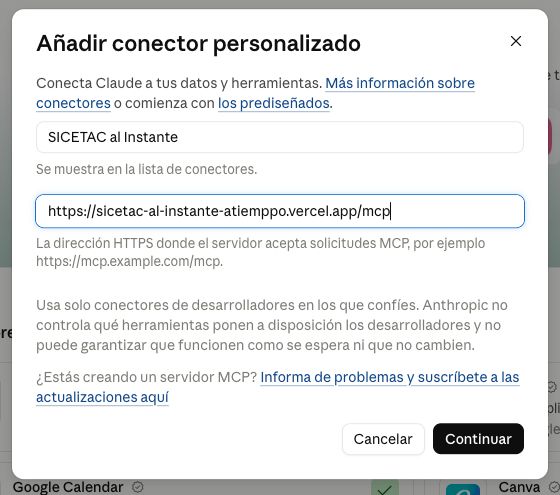
- Go to Claude → Customize → Connectors and choose Add → Add custom connector. If SICETAC al Instante already appears in your connectors, open the existing connection.
- Enter SICETAC al Instante as the name, paste the MCP address above and select Continue.
-
Under authentication, select Sign in now and Use your own OAuth client. Enter this public Claude web identifier and leave the client secret empty:
5f308b2b-b0bf-45a1-a3e2-3cf6d0d70c49 - Complete Add → Connect as shown on screen. When our portal opens, sign in with your ATIEMPPO account and review the permissions before authorizing.
- Return to Claude and enable SICETAC al Instante in the connectors for a new conversation. To begin, you can keep approval enabled for each tool.
The identifier above belongs to the Claude web application and is public; your personal authorization grants account access. We have registered different clients for other products, so use the identifier corresponding to each integration.
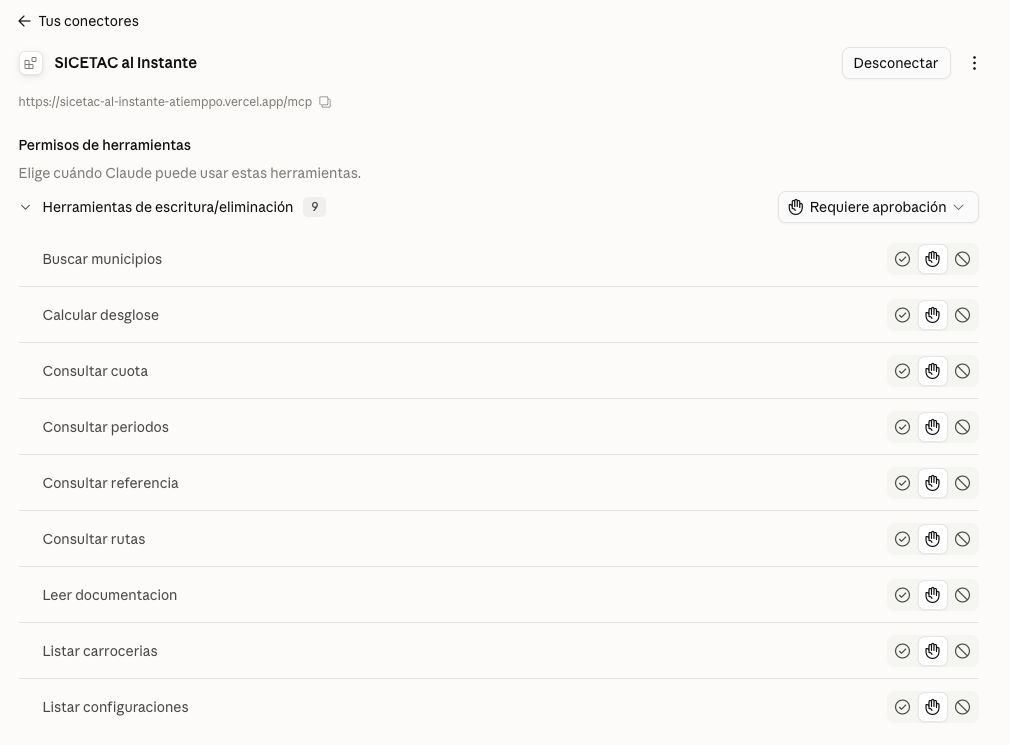
During sign-in, you enter your password in our portal, and the agent receives an authorization you can revoke. If your organization manages Claude connectors, its administrator must allow the addition. If an authorization request has expired, return to the agent and select Connect to start a new one.
Step 3B. Connect SICETAC al Instante in Grok Bot
In the installation we tested, we added the server from a personal bot and completed authorization with an ATIEMPPO account. You can begin with this instruction, which includes the public configuration details:
Add a remote MCP server named SICETAC al Instante.
URL: https://sicetac-al-instante-atiemppo.vercel.app/mcp
Transport: Streamable HTTP.
Authentication: OAuth.
Grok Bot public client: 1be6a88a-2530-402c-a751-40b331c0fb28
Scope: email.
Open authorization so I can sign in to ATIEMPPO.
Do not calculate any route yet.
Then open the authorization card presented by the application, sign in to our portal and review the permissions. After returning to the bot, check access by querying your balance, as shown in the next step.
We registered that client for the OAuth callback of the Grok Bot installation we tested. If your version has a different process or cannot complete configuration, contact ATIEMPPO Support so we can review the integration and callback before authorization.
Our progress with OpenAI
We are also working to publish SICETAC al Instante in OpenAI. We completed OAuth authorization and tool discovery in a test connection. As of 19 October 2026, plugin 0.4.5 remained under review for publication. We will add the public listing and installation process when available.
While that process continues, we can help with an assisted test from the OpenAI product you use. This requires configuring its specific client and callback; you can then authorize the connection with the same ATIEMPPO account. You can request assistance from our team. Approval timing depends on OpenAI and remained pending at the date of this guide.
Step 4. Check access and query your first route
We recommend starting with your quota and documentation, which checks the connection while preserving the balance. You can ask the agent:
Use SICETAC al Instante to query my quota and the documentation. Confirm that the connection responds. Do not calculate any route yet.
Once access is confirmed, move to a published reference. This instruction also tells the agent how to resolve a possible route ambiguity:
Query the published SICETAC reference from Bogotá to Barranquilla using the initial profile and the latest period available on the server. If there are several variants, show them so I can choose before calculating. Present the route and value first, followed by the source, period, parameters and limitations.
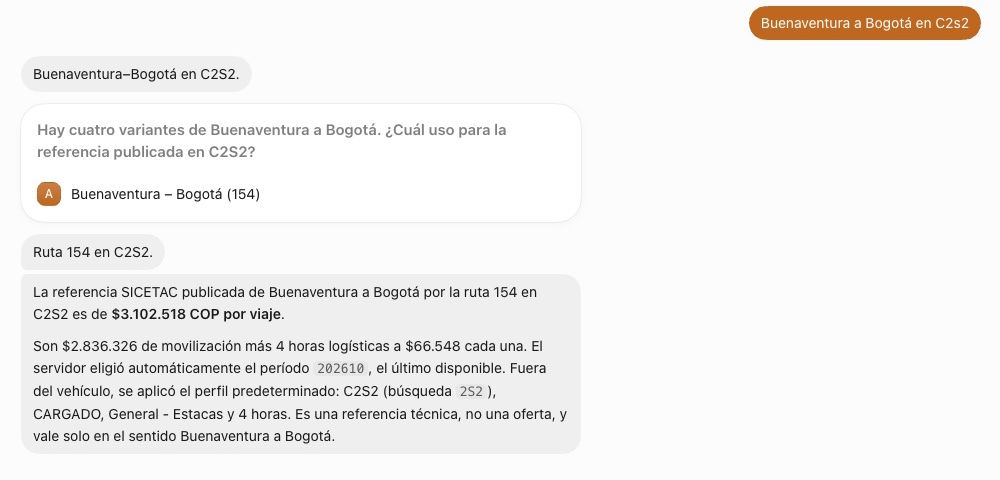
To make it easier to start, we have defined a profile of C3S3, loaded, general cargo, stake body (estacas) and four logistics hours. It applies only to parameters you omit. When you do not specify a month, we select the latest period available in the server’s source and show it in the result. If you request a specific period, we retain that choice; when the period is unavailable, we report that while preserving your request.
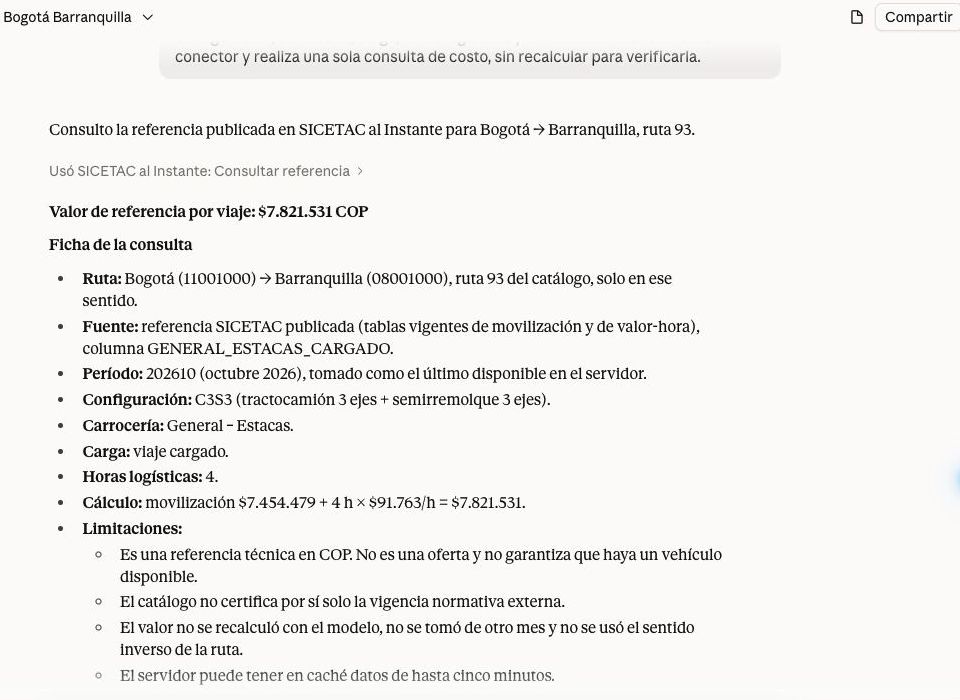
From the reference, you can explore costs with our model, retaining route data while changing the assumption you want to study:
For the same route and variant, calculate the model breakdown with six logistics hours. Use the same period and retain all other parameters. Show the cost components and identify the result as a model calculation.
If you need to work with a route outside the catalog, request manual mode and supply the required information progressively:
I want to calculate a manual route with SICETAC al Instante. Tell me which distances by terrain type and tolls you need. Retain the parameters I have already provided and ask only for the missing inputs before calculating.
In manual mode, we calculate using the supplied scenario data, so we need distances by terrain type and tolls before running the engine. We identify the result as a model calculation and deduct one query when it completes successfully, as with other calculation scenarios.
Integrating these capabilities with your own system
If you are developing an application or agent, we provide OpenAPI documentation and our agent guide. In Mis claves API (“My API keys”) in the portal, you can create a key with a name, permissions and expiry for the integration you need. Its queries share your account’s allowance.
The API uses Bearer authentication. Keep the key in your application’s secret store and out of conversations and public files. For OAuth connections, we register each SICETAC al Instante client with its exact callback, so a new integration requires coordinating that configuration with our team.
Reviewing and managing your usage
Actividad de mis consultas (“My query activity”) brings together your account’s requests, successful calculations, clarifications and errors, with attribution by agent or key where available. You can compare that activity with the queries deducted. When a request has no verifiable agent identification, that limitation remains visible in the tracking.
From the same portal, you can revoke connections and keys, review your balance or continue working on your ATICA network. This initial version is intended to let you explore how references and cost calculations fit into your work, and help us develop useful operational capabilities from that experience.
We invite you to open SICETAC al Instante and connect your agent. If you need help with configuration, contact ATIEMPPO Support.
SICETAC al Instante terms — Spanish · Personal-data policy — Spanish
Sources and verification date
We prepared this guide using our service documentation, portal checks and the connection tests described in the captions. We also consulted the providers’ official guides:
- ATIEMPPO: portal, service landing page, OpenAPI and agent guide, reviewed on 19 October 2026.
- Anthropic: custom connectors using remote MCP, consulted on 19 October 2026. The specific public SICETAC al Instante client belongs to our Claude web configuration.
- xAI: bot and connection configuration and remote MCP tools in the API, consulted on 19 October 2026. We document the native Grok Bot test separately from API integration possibilities.
- OpenAI: plugin submission, review and publication. We checked ATIEMPPO’s listing on 19 October: version 0.4.5 under review, MCP configured and publication pending.